

Every Ubuntu server holds something worth losing: a website, a database, config files you spent hours tuning. A disk can fail, an update can go wrong, or one mistyped command can wipe a directory — and then the only question is whether you have a backup, and whether it actually works.
In this article you will build a backup system that runs itself: rsync copies your files to a backup location, and cron runs the job every night at 2 AM. You will test each part as you go — I tested the backup and scheduling steps hands-on on Ubuntu 24.04, rsync 3.2.7.
What you need
- An Ubuntu Server with sudo access.
- rsync and cron (standard on Ubuntu Server; Step 1 shows how to check).
- A backup destination: a second disk, a network drive, or another server over SSH. Backing up to the same disk will not save you from a disk failure.
Every command here that reads your site or writes the log runs with sudo: the backup runs as root because it reads /var/www, writes /var/log/backup.log, and preserves ownership. As an ordinary user, it would silently skip files it cannot read and record the wrong owners.
Step 1 — Check that rsync and cron are installed
Run these two commands:
rsync --version
which rsync cron crontab
On my test server, rsync --version printed rsync version 3.2.7 and which showed all three paths. If anything is missing:
sudo apt update && sudo apt install -y rsync cron
Then confirm cron is running (sudo systemctl status cron — look for active (running)); if not, sudo systemctl enable --now cron starts it.
Step 2 — Run your first manual backup
Before automating anything, run the backup once by hand: this example backs up /var/www to a second disk at /backup — change both paths to match your setup, and use sudo, since /var/www belongs to root.
First a dry run (--dry-run prints what rsync would do without copying anything), then run it for real:
sudo rsync -av --dry-run /var/www/ /backup/
sudo rsync -av /var/www/ /backup/
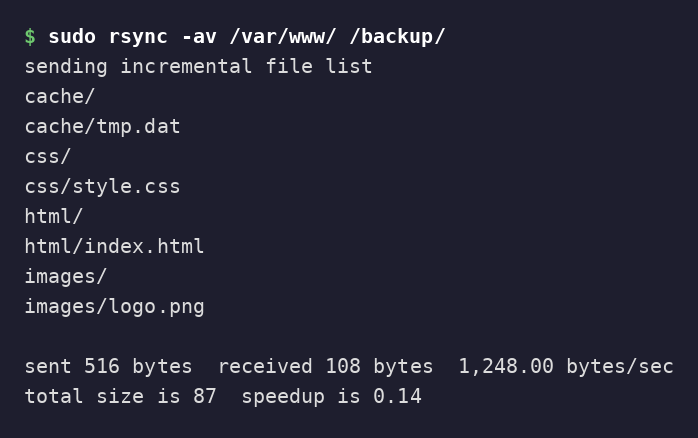
Two flags do most of the work: -a (archive mode) copies recursively, preserving permissions, timestamps, ownership, and symlinks; -v prints each file as it is copied.
The trailing slash rule
These two commands do different things:
sudo rsync -av /var/www/ /backup/   # copies the CONTENTS of /var/www
sudo rsync -av /var/www /backup/    # copies the /var/www DIRECTORY itself
With the trailing slash, rsync copies the files inside /var/www straight into /backup (/backup/index.html); without it, you get /backup/www/index.html. Pick one form and use it everywhere.
Run it again:
sudo rsync -av /var/www/ /backup/
This time rsync prints almost nothing — nothing changed, so there was nothing to copy. That is why rsync is cheap to run every night.
Step 3 — Put the backup in a script
Typing the command by hand every night is not a backup strategy — put it in a script.
Create it with sudo nano /usr/local/bin/backup.sh and paste in:
#!/bin/bash
SOURCE="/var/www/"
DEST="/backup/"
LOG="/var/log/backup.log"

echo "[$(date '+%Y-%m-%d %H:%M:%S')] Backup started" >> "$LOG"

/usr/bin/rsync -a --delete \
  --exclude 'cache/' \
  --exclude '*.tmp' \
  "$SOURCE" "$DEST" >> "$LOG" 2>&1

STATUS=$?

if [ $STATUS -eq 0 ]; then
  echo "[$(date '+%Y-%m-%d %H:%M:%S')] Backup finished OK" >> "$LOG"
else
  echo "[$(date '+%Y-%m-%d %H:%M:%S')] Backup FAILED (exit code $STATUS)" >> "$LOG"
fi

exit $STATUS
Three choices deserve an explanation:
--deletekeeps the backup honest. Without it, deleted files stay in the backup forever. With it, rsync removes them — test with--dry-runfirst (see below).--excludeskips what is not worth backing up. Caches and temporary files can be regenerated — no reason to copy them nightly.- Logging and the exit code make failures visible. Every run appends two lines to
/var/log/backup.log, and the script passes rsync’s exit code on, so cron and any monitoring can see it too. A backup that fails quietly is barely better than no backup.
Make it executable, run it as root, and read the log:
sudo chmod +x /usr/local/bin/backup.sh
sudo /usr/local/bin/backup.sh
echo "exit code: $?"
sudo cat /var/log/backup.log
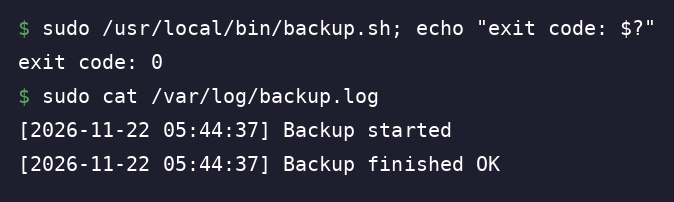
The cache directory never reached the backup — confirm with find /backup -type f.
Test --delete with --dry-run before you trust it
The script’s rsync line includes --delete, which erases files from the backup — test that exact line with --dry-run before the first real run. Add -v, or rsync prints nothing at all:
sudo rsync -av --delete --dry-run --exclude 'cache/' --exclude '*.tmp' /var/www/ /backup/
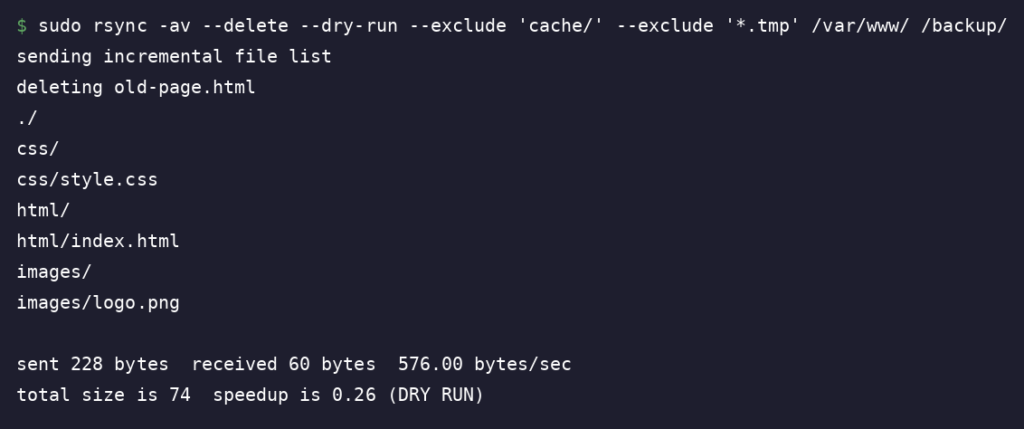
deleting old-page.html is what --delete would remove; the list is what would be copied; cache/ never appears; (DRY RUN) confirms nothing changed.
Rotate the log so it never grows forever
The script appends to /var/log/backup.log every night, so create a logrotate config before that file grows without limit:
sudo nano /etc/logrotate.d/backup
/var/log/backup.log {
    weekly
    rotate 4
    compress
    delaycompress
    missingok
    notifempty
}
This keeps four compressed weekly rotations, skipping the job if the log is missing or empty. Set the permissions before validating — logrotate silently ignores a group-writable config:
sudo chmod 644 /etc/logrotate.d/backup
sudo logrotate -d /etc/logrotate.d/backup
I checked mine that way and forced a rotation on a scratch copy.
Step 4 — Schedule it with cron
Now hand the script to cron — edit root’s crontab, not your own: a job in your own crontab runs as you and fails on files only root can read:
sudo crontab -e
Add this line for a 2 AM daily run:
0 2 * * * /usr/local/bin/backup.sh
No sudo inside the line — this is already root’s crontab. The five fields are minute, hour, day-of-month, month, day-of-week, so 0 2 * * * means 2:00 AM daily.
The PATH pitfall
Cron runs jobs with a minimal environment and a short PATH — a command that works when you type it can fail under cron. That is why the script calls /usr/bin/rsync with its full path, and the crontab line calls the script by its full path too.
Confirm the job actually ran
The morning after the first scheduled run, check the log:
sudo cat /var/log/backup.log
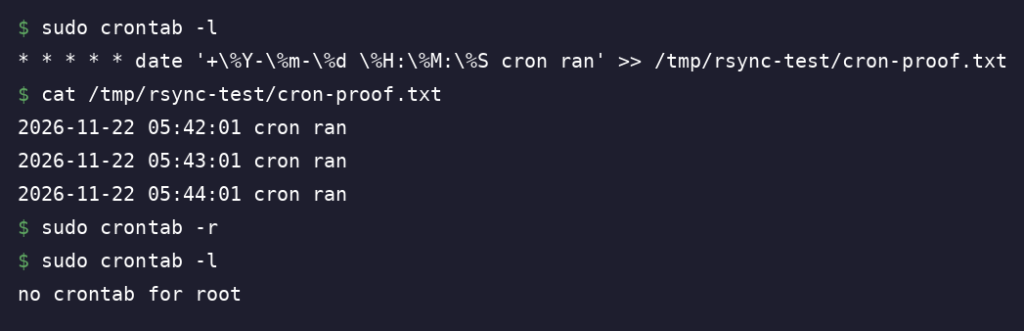
You should see a fresh pair of lines with last night’s timestamp and Backup finished OK. If there are no new lines, the job did not run: check root’s crontab (sudo crontab -l), the cron service, and sudo grep CRON /var/log/syslog.
I verified this with a job in root’s crontab that ran every minute — the file gained a new timestamp every minute:
Step 5 — Back up to another server over SSH
A backup on a second disk protects you from deleted files and bad updates, but not from a dead server or a stolen machine — send it to another server over SSH.
First, switch to a root shell — the key must live in /root/.ssh, where root’s cron job can read it. Rsync needs the key to log in without a password, which a cron job cannot type at 2 AM:
sudo -i
ssh-keygen -t ed25519 -C "backup@your-server"
Accept the defaults and leave the passphrase empty — a cron job uses this key unattended. Then copy the public key to the backup server:
ssh-copy-id backup-user@backup-server
Type the backup server’s password once, for this setup step only. Test it with ssh backup-user@backup-server — you should get in without a password prompt.
Now point the script at the remote destination, adding -e ssh (tunnel through SSH) and -z (compress in transit). On the backup server, backup-user must own /backup, or the push fails with a permission error:
/usr/bin/rsync -az -e ssh --delete \
  --exclude 'cache/' \
  --exclude '*.tmp' \
  "$SOURCE" backup-user@backup-server:. >> "$LOG" 2>&1
Restrict the backup key on the backup server
A key that can log in and run anything is a spare front door. Restrict it in the backup server’s ~/.ssh/authorized_keys — one line, before the key itself:
command="/usr/bin/rrsync -wo /backup/",no-port-forwarding,no-agent-forwarding,no-pty,from="203.0.113.10" ssh-ed25519 AAAAC3...
command="..." forces rrsync instead of a shell, -wo makes it write-only — the key can push backups in but cannot read anything back — /backup/ limits rsync to that directory, the no-* options switch off forwarding and terminal allocation, and from="203.0.113.10" accepts the key only from your server’s IP (use yours, or drop from= if your IP changes). I tested this against an SSH server on my test machine: a shell login was refused (“SSH_ORIGINAL_COMMAND does not run rsync”), a pull was refused (“reading from write-only server is not allowed”), and a push copied the files into /backup/. One catch: with rrsync, the remote path is . — the restricted directory itself. Using /backup/ would silently nest the backup one level deeper, at /backup/backup/.
Step 6 — Prove the backup works
A backup you have never restored from is a guess. Prove yours works — move one file out of the source, copy it back from the backup, and compare:
sudo mv /var/www/html/index.html /tmp/index.html.moved
sudo cp /backup/html/index.html /var/www/html/index.html
diff /var/www/html/index.html /backup/html/index.html
If diff prints nothing, the two files are identical and the restore worked — I ran this exact test and the file came back byte-for-byte identical. Make it a habit: restore one random file monthly, and rehearse a full restore twice a year. The day you need a restore for real is the worst day to discover your backup was broken.
With the remote backup from Step 5, restore in reverse:
sudo rsync -av backup-user@backup-server:/backup/html/index.html /var/www/html/index.html
Note: the Step 5 key is write-only and cannot pull files back — use a separate read-capable key instead, or copy the files on the backup server.
What this backup does not do
Rsync with --delete keeps a mirror of your site, not a history of it: a file corrupted on Monday is corrupted in Tuesday’s backup too. For history, keep dated snapshots on one filesystem — cheapest with --link-dest, which hard-links unchanged files to the previous night (hard links cannot cross filesystems):
/usr/bin/rsync -a --delete --link-dest=/backup-snapshots/2026-11-21 \
  /var/www/ /backup-snapshots/2026-11-22/
I tested this on my server: after changing one file, the new snapshot shared inodes with the old one for every unchanged file, the changed file got a fresh copy, and the old snapshot still held the old content — two full-looking snapshots for about the cost of one. Rotate them (7 daily, then 4 weekly) and delete the oldest.
Common mistakes
- The trailing slash.
/var/www/and/var/wwwback up to different places. Be consistent, and check where the files landed withfind. --deletewithout a dry run. Test every new--deletesetup with--dry-runfirst — a wrong destination plus--deletecan erase the backup you were trying to protect.- The wrong crontab. A backup that needs root must live in root’s crontab (
sudo crontab -e) — a job in your own crontab runs as you and fails on files only root can read. - Never testing a restore. An untested backup is not a backup — restore a file, compare it, and do it regularly.
Closing
Keep it boring — boring is what runs for years without attention. Nightly at 2 AM: the rsync script, to a second disk or another server. Weekly: copy the backup off-site. Monthly: restore one file and compare it, as in Step 6.
You now have a backup that runs itself: rsync copies only what changed, a script wraps the command with logging and error checking, cron runs it every night as root, and SSH can carry it to another server — with the key locked down so it can only push backups in. Test a restore regularly.