
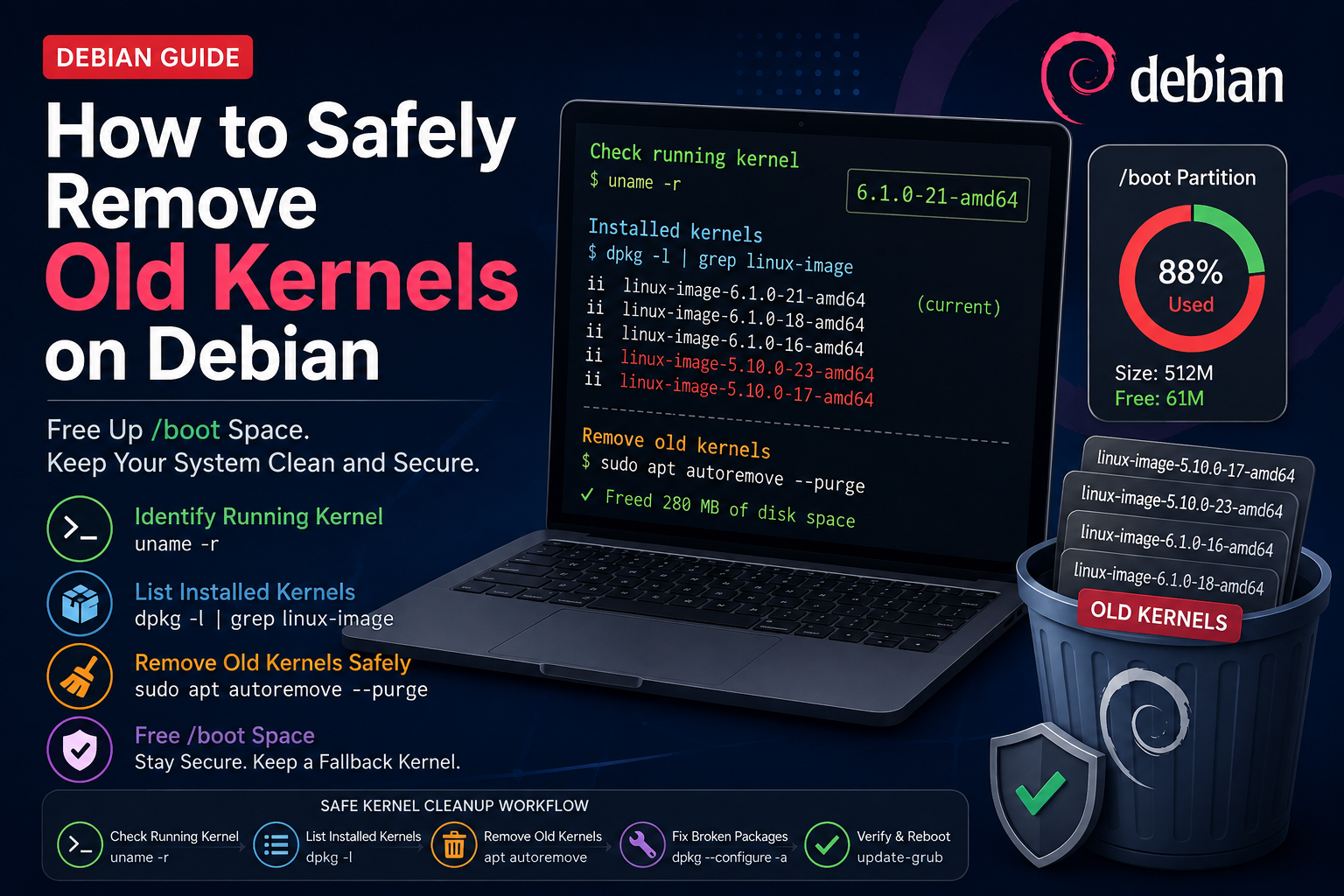
Keeping your Debian system updated means installing new Linux kernels regularly. However, older kernel packages may remain installed after kernel upgrades and gradually consume valuable space in the /boot partition.
This can become a serious problem on systems with a small or separate /boot partition. When /boot runs out of space, apt may fail to install a new kernel, system upgrades can become stuck, and package dependencies may enter a broken state.
In this guide, you will learn how to safely remove old kernels on Debian, how to identify the currently running kernel, how to use apt autoremove --purge, how to manually remove an obsolete kernel when /boot is full, and how to repair the package manager afterward.
Why Do Old Kernels Remain on Debian?
Linux kernel updates normally install a new kernel rather than immediately deleting the previous one.
Keeping an older kernel is useful because it provides a fallback boot option if the newest kernel has a compatibility or boot problem. Debian’s package management system therefore maintains a set of kernels that should not be automatically removed. Therefore, the goal should not be to delete every old kernel.
Instead, remove obsolete kernels while retaining a suitable fallback kernel.
When Should You Remove Old Kernels?
Old kernels become particularly important when the /boot partition starts running out of disk space. Check the available space with:
df -h
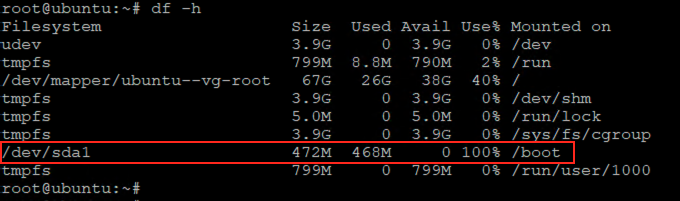
The more difficult situation occurs when /boot is so full that APT cannot complete a kernel installation or package operation.
You can also inspect the files occupying /boot:
sudo du -sh /boot/*
The kernel images and initramfs files can consume significant space when several kernel versions are installed.
Step 1: Check the Currently Running Kernel
Before removing anything, determine which kernel the system is currently using:
uname -r
This version is your currently running kernel and must not be removed while the system is running it. It is a good practice to record this version before performing any manual cleanup.
Step 2: List Installed Kernel Packages
To see the installed Linux kernel packages, use:
dpkg -l | grep -E 'linux-image|linux-headers'
Note: The ii status indicates that the package is installed.
Method 1: Remove Old Kernels Using APT
For most Debian systems, the safest first approach is to let APT determine which automatically installed packages are no longer required.
sudo apt autoremove --purge
APT’s autoremove functionality removes packages that were automatically installed as dependencies and are no longer required. The --purge option additionally removes their configuration files.
If old kernel packages are eligible for automatic removal, they should appear in the list.
Why apt autoremove is preferable?
Using APT rather than manually deleting files has an important advantage: the package manager understands the relationship between kernel images, headers, modules, and other packages.
It also maintains protection rules for kernels that should remain available. Debian’s APT implementation specifically generates a list of kernel packages that should not be automatically removed.
Method 2: Manually Remove a Specific Old Kernel
Sometimes apt autoremove does not remove an old kernel that you know is obsolete. This can happen when a kernel package is marked as manually installed or when the package state has become unusual.
Check the version number of the currently running kernel, which you DO NOT want to remove.
uname -r
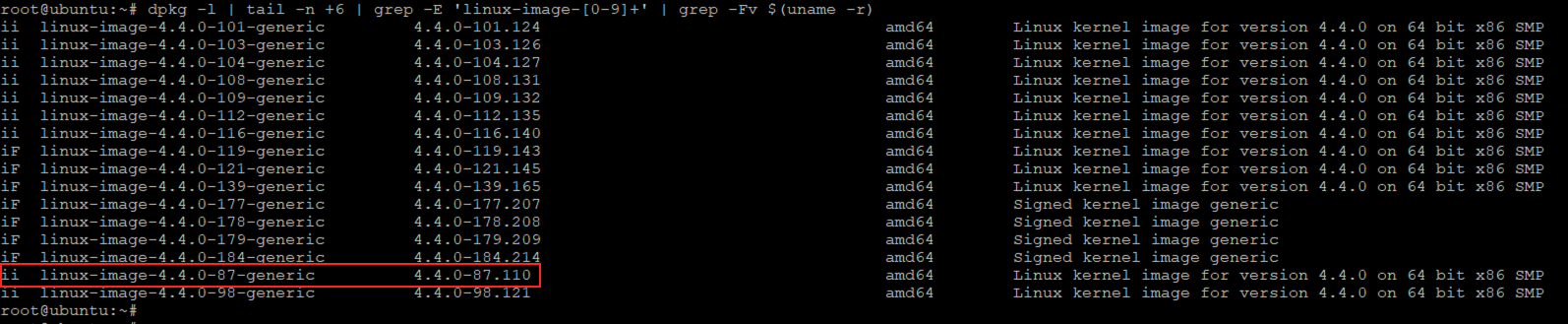
List all the kernels, excluding the booted one (4.4.0-124-generic in this example), in the package database and their statuses.
dpkg -l | tail -n +6 | grep -E 'linux-image-[0-9]+' | grep -Fv $(uname -r)

## Status 'ii' means Installed and eligible for removal since it is old kernel
In a severely full /boot partition, normal package operations may fail because there is not enough space to create or update the required initramfs files. To free space in /boot it is required to remove an initrd.img file for a suitable old kernel manually. Use this only after carefully verifying the kernel version.
update-initramfs -d -k 4.4.0-87-generic

After freeing enough space to allow package management to work again, purge the corresponding kernel package:
dpkg --purge linux-image-4.4.0-87-generic linux-image-extra-4.4.0-87-generic
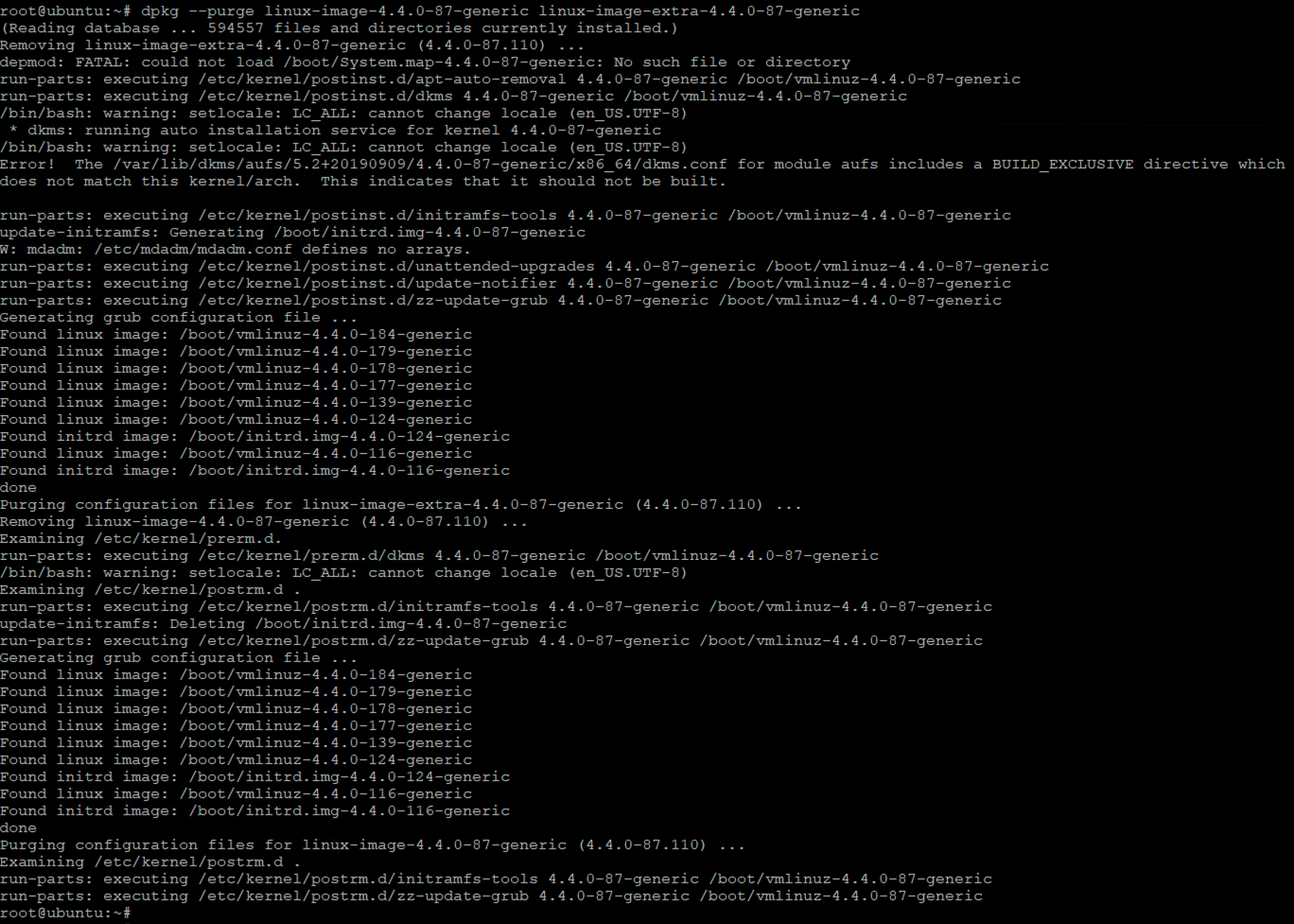
NOTE: The previous command will probably fail, as there probably is a depending linux-image-extra package installed together with a ‘generic’ kernel package. The output of dpkg tells the name of the package. Purge-it first.
Also, purge the respective header package and try also purging the common header package.
dpkg --purge linux-headers-4.4.0-87-generic
dpkg --purge linux-headers-4.4.0-87

Now it will remove the specified old kernel. Likewise, do the same manual process for old kernels until you free up some space on /boot partition. And once the /boot partition gets free, run the apt-get autoremove command and it will remove the rest of the old kernels automatically.
Repair Broken Package Dependencies
If the failed kernel installation left APT or dpkg in an incomplete state, run:
sudo dpkg --configure -a
sudo apt --fix-broken install

sudo apt autoremove --purge
Should You Remove Every Old Kernel?
No. Keeping at least one known-good fallback kernel is generally a sensible operational practice.
If the newest kernel has a boot, driver, hardware, or compatibility problem, GRUB can provide an older kernel as a recovery option.
The purpose of kernel cleanup is therefore not to leave only one kernel installed. It is to remove obsolete kernels while retaining an appropriate fallback.
APT’s kernel auto-removal mechanism is designed around this principle and maintains protected kernel versions rather than simply deleting every older kernel.
Conclusion
Regular kernel updates are essential for receiving security fixes, bug fixes, and hardware support, but keeping every historical kernel indefinitely can consume valuable /boot space. The safest approach is to let Debian’s package manager handle kernel cleanup whenever possible.
If /boot becomes completely full and prevents APT from completing an upgrade, carefully remove an obsolete kernel, restore enough free space, repair the package database, and then allow APT to complete the remaining cleanup.