
Ransomware appeared in 88% of small and medium business breaches in Verizon’s 2025 Data Breach Investigations Report. The report also cited a median ransom payment of $115,000. This guide shows how to harden a small business server in one weekend, with three jobs that reduce common risks. It starts with the accounts, not the firewall.
Start with the accounts, not the firewall
Verizon’s 2025 Data Breach Investigations Report found that credential abuse accounted for 22% of initial access and vulnerability exploitation for 20% across the report’s dataset. These are report-wide figures, not percentages specific to small-business breaches.
The fix for the first one is faster, though. It takes an afternoon, and it works even when the attacker already has the password, which happens after every phishing email and every breach that dumps credentials online.
A 2023 Microsoft study of Azure Active Directory accounts measured what MFA actually stops. It cut the risk of compromise by 99.22% across the accounts studied, and by 98.56% even for accounts whose passwords had already leaked. Over 99.99% of accounts with MFA stayed secure through the study window. Microsoft’s older and widely quoted 99.9% figure was an estimate from 2019. The 2023 study measured real accounts, so those are the numbers that matter.
That is the fastest way to harden a small business server against the most common attack. The work itself is unglamorous. You open each admin account, set up the second factor, and save the backup codes.
An afternoon covers a small team. Nobody enjoys setting up MFA. Nobody enjoys explaining a breach to customers either.
Start with admin accounts only. Attackers want those first, so protect those first. Regular users can follow next week, once the admins have settled in.
Not all MFA is equal, and the order matters. A passkey is the first choice for the one or two admin accounts with the most access. A passkey is a phishing-resistant credential stored on the device and unlocked with a fingerprint or a PIN. There is nothing to type into a login page, so there is nothing for a fake login page to steal. An SMS code or an app code can be phished. A passkey cannot, because the credential never leaves the device and it only works on the real site. CISA lists FIDO2 and WebAuthn, the standards behind passkeys, as phishing-resistant. A hardware security key is the other phishing-resistant option, and it makes sense for those same one or two accounts.
For the rest of the team, an authenticator app is the practical default. Microsoft Authenticator or Google Authenticator generate codes on the phone, and they cost nothing. SMS codes are the weak option.
SIM swap attacks let an attacker move your number to their phone and receive your codes. Pick the app for now.
Give every admin a second way in. A second device works. Printed backup codes work too. Store them in a password manager or a locked drawer, never as a screenshot on the phone that holds the authenticator.
Keep one break-glass admin account. Create it, protect it with a long password and its own MFA, and store the details offline. Use it only when someone loses a phone. Test it on Saturday, while you still have time to fix a mistake.
If someone loses a phone on a Friday night, the break-glass account is the difference between a five minute fix and a weekend of locked out admins, unanswered customer emails, and a server nobody can reach.
Why your patch list lies to you
In Verizon’s 2025 Data Breach Investigations Report, vulnerability exploitation accounted for 20% of initial access across the report’s dataset. A patch for an exploited flaw may have been available for months, published by the vendor and waiting in the update queue while nobody installed it. It sat uninstalled.
Patching is the unglamorous core of server hardening. Check what is out of date first. On Ubuntu or Debian, run:
Ubuntu / Debian: check pending updates
sudo apt update && sudo apt list --upgradable
That shows what is pending. To install everything and set up the tools you need for the rest of the weekend, run:
Ubuntu / Debian: install updates and tools
sudo apt update && sudo apt upgrade -y
sudo apt install -y unattended-upgrades fail2ban ufw
On Windows Server, open PowerShell as an administrator and run:
Windows Server: PowerShell (run as administrator)
Install-Module PSWindowsUpdate
Get-WindowsUpdate -Install -AcceptAll -AutoReboot
Patch in this order: operating system, then services like the web server and database, then applications. Install everything pending. Attackers do not limit themselves to flaws marked critical.
Then reboot, and check the version numbers. A patch that never got a reboot protects nothing. On Linux, uname -r shows the running kernel, and apt list --upgradable should come back empty. Check the firewall and the intrusion blocker while you are there. sudo ufw status and sudo fail2ban-client status show whether both are running.
On Windows, Get-HotFix lists the installed updates, and the update history shows whether each install finished. Version numbers are the proof. A screen with no errors is not. Check it.
Turn on automatic security updates before the weekend ends. On Ubuntu, that means unattended-upgrades. On Windows Server, set active hours so updates install on Saturday and never during work. The rule from here on: no patch sits uninstalled for more than a week.
Sunday morning: prove the backup works
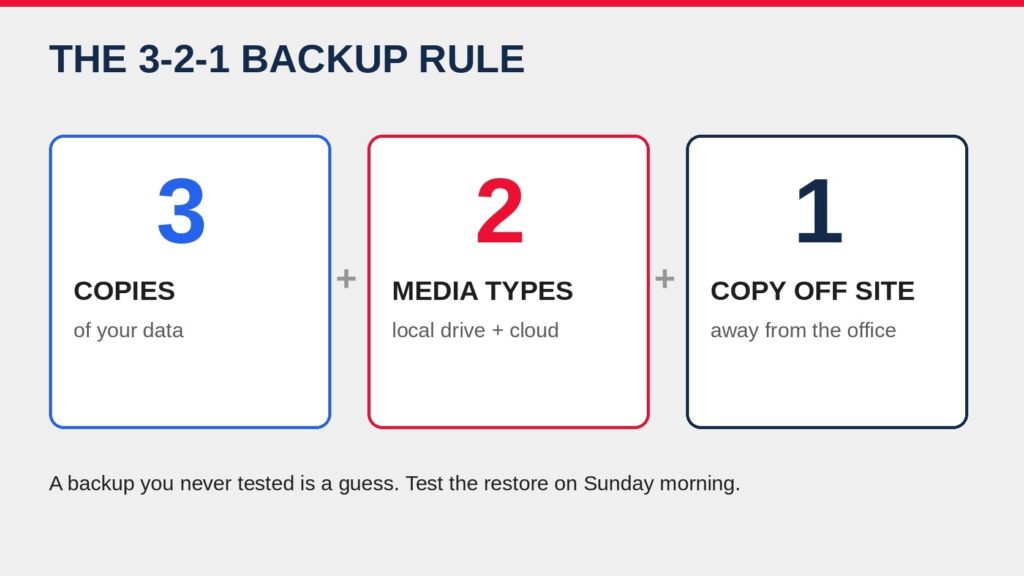
A backup you never tested is a guess. Ransomware is the reason the guess matters. When ransomware encrypts the files, the backup is the only way back without paying, and a backup that fails at that moment is the same as no backup at all.
Follow the 3-2-1 rule. Keep three copies of the data, on two different kinds of storage, with one copy off site. A copy on the same server does not count. A USB drive in the office and a cloud copy do.
Do a real test restore on Sunday morning. Pick a spare machine or a virtual machine and restore the latest backup to it. Boot it and open the key application. Then open one data file to confirm it is intact. Time the whole restore from start to finish and write the time down.
Four hours means the business stays down for four hours after an incident. That number belongs in the plan, not in a guess.
A restore that boots is not the whole check, especially where a database is involved. A file copy can look fine while the database inside it is damaged. After the restore, verify the database itself: open it, check that the tables read, and confirm the most recent transactions are there. The database has its own tools for this, such as mysqlcheck for MySQL, DBCC CHECKDB for SQL Server, or a dump and restore check for PostgreSQL. A backup that passes the file check but fails the database check is not a working backup.
Keep one copy the ransomware cannot reach. A backup on a drive that stays connected, or in a cloud folder that syncs, is a target like any other file. Keep one copy offline, on a drive that is unplugged after the backup finishes, or immutable, in storage that cannot be changed or deleted for a set period. When ransomware encrypts everything it can touch, the offline or immutable copy is the one that is still there on Monday morning.
Write down the restore steps while you do the test. The person who set up the backup may not be the person who needs it at 2 a.m., in the middle of an incident, with the business down and customers calling. A short written procedure turns a bad night into a checklist.
Automate the schedule and check the logs every Monday. Every Monday. No exceptions.
A backup that stopped running three weeks ago is worse than no backup, because it creates confidence with nothing behind it.
Five things to close before Monday
These take minutes each. Do them on Sunday afternoon, after the restore test.
- Disable unused services and close unneeded ports. Check with
ss -tulnand close what the business does not use. Every open port is a door. - Turn the firewall on with a default deny rule. Allow only the ports the business needs. For a web server that is usually 80 and 443, plus SSH from your own addresses only. On Ubuntu, the commands are:
Ubuntu: UFW firewall rules
sudo ufw default deny incoming
sudo ufw allow 80/tcp
sudo ufw allow 443/tcp
sudo ufw allow from <your-office-IP> to any port 22
sudo ufw enable
Before enabling UFW on a remote server, replace <your-office-IP> with the correct trusted public IP address or CIDR range. Confirm that your current administrative IP is allowed, keep your existing SSH session open, and test a second SSH connection before closing it. If available, make sure you have console or out-of-band access in case the firewall rule blocks remote access.
On Windows Server, make sure the firewall is on for every profile:
Windows Server: PowerShell (run as administrator)
Set-NetFirewallProfile -Profile Domain,Public,Private -Enabled True
- Give every person their own account, with only the access their job needs. No daily work as root or as a domain admin. Remove accounts when people leave.
- Use SSH keys instead of passwords for admin access. Generate a key pair on your own machine and copy the public key to the server. The commands are:
Your own machine: create and copy the SSH key
ssh-keygen -t ed25519
ssh-copy-id user@server
Then open /etc/ssh/sshd_config and set PasswordAuthentication no and PermitRootLogin no. Before applying the change, confirm that key-based login works in a second SSH session and keep your existing session open. Validate the configuration with sudo sshd -t, then reload the SSH service on Ubuntu/Debian with sudo systemctl reload ssh. Do not close the existing session until you have successfully tested a new connection. A brute force scanner cannot guess a key.
- Set a weekly five minute log check. Look for failed login attempts and anything unusual. Five minutes a week catches what a yearly review never does.
The 60% number everyone quotes is wrong
You will see one statistic in almost every article about small business security: 60% of small businesses close within six months of a cyberattack. The National Cyber Security Alliance confirmed in 2022 that it never produced that number. The figure has no source, and it keeps circulating anyway.
The real numbers are bad enough without it. Verizon counted 3,049 incidents and 2,842 confirmed breaches at small and mid-sized businesses in a single year, and ransomware in 88% of them. Those figures come from incident data collected from thousands of real breaches, analysed case by case, not from a quote passed around the internet by people who never checked where it came from in the first place.
Your weekend: harden a small business server, hour by hour
Saturday morning: inventory, backup, patching. Saturday afternoon: MFA for the admins and the break-glass account. Sunday morning: the restore test. Sunday afternoon: the five quick wins, then write down everything you changed.
That list fits on one page. Tape it to the server room door, or save it where the next person to do this job will find it.
What can wait: log centralisation and intrusion detection, plus network segmentation and a formal security policy. All four are worth doing. None of them matters as much as the three jobs above, so do not let them eat the weekend.
Open your server now and check one thing: when did the last patch go in? If you cannot answer in thirty seconds, that is Saturday morning’s first job. Start there.
Sources
- Verizon 2025 Data Breach Investigations Report, Small and Medium-Sized Business Snapshot (Verizon’s own report): ransomware in 88% of SMB breaches, median ransom $115,000, credential abuse 22%, vulnerability exploitation 20%, 3,049 incidents and 2,842 confirmed breaches: https://www.verizon.com/business/resources/infographics/2025-dbir-smb-snapshot.pdf
- Meyer et al. 2023, “How effective is multifactor authentication at deterring cyberattacks?” (Microsoft Research paper, hosted by Microsoft): MFA cut compromise risk by 99.22% overall and 98.56% for leaked-password accounts; over 99.99% of MFA-enabled accounts stayed secure: https://cdn-dynmedia-1.microsoft.com/is/content/microsoftcorp/microsoft/final/en-us/microsoft-brand/documents/mfa-microsoft-research-paper-update-347347.pdf
- CISA, Implementing Phishing-Resistant MFA: FIDO2 and WebAuthn are phishing-resistant; SMS codes are the weakest option.
- National Cyber Security Alliance 2022 confirmation that it never produced the 60% figure, and Verizon SMB breach counts (via CNI Solutions): https://cnicsolutions.com/statistics/cybersecurity/small-business-cyber-attack-statistics-2026/
- Linux server hardening checklist with patching commands and the 3-2-1 backup rule (via Hasan Gultekin): https://www.hasangultekin.com/2026/10/21/linux-web-server-hardening-checklist/
- Linux server hardening: firewall and SSH steps (via SaifCodes): https://www.saifcodes.com/blog/linux-server-hardening-firewall-tailscale
